

 Authenticate
 Manage Users
 Customize
 Auth0 AI
 Platform
- An API identified by its
audienceor unique identifier. - An application identified by its
client_id. - A list of permissions such as scopes and/or
authorization_details_typesthat the application is allowed to request for the specified audience.
Application API access policies and client grants
When you configure an API’s application access policy torequire_client_grant, only applications with a client grant defined can get an access token for the API. The client grant establishes the maximum permissions an application can request from the API by following the least privilege principle approach. As a result, Auth0 recommends using require_client_grant when configuring an API’s application access policy.
Example: Social Media API
To illustrate how client grants follow the least privilege principle approach, say you have a Social Media API with the permissions:read:posts, write:posts, read:friends, and delete:posts. You create an application and define a client grant with the permissions: read:posts and write:posts.
This client grant now serves as a hard ceiling. Even though the Social Media API has other permissions, your application can never request or be granted read:friends or delete:posts.
User-delegated access vs. client access
In user and client access, client grants define the final set of permissions that control an application’s access to an API. The client grant’ssubject_type attribute determines the type of application access allowed for an API.
An application can have up to two client grants for a single API:
- When you set
subject_typetoclient, you define its machine-to-machine permissions. - When you set
subject_typetouser, you define its permissions to act on the user’s behalf.
You can modify the final scopes granted by the authorization server to the application or user using Actions.
Client grant attributes
A client grant has several attributes that you can define to configure application access to APIs using the Auth0 Management API:Create client grant
You can create:- Per-application permissions: Apply granular permissions to each application in your tenant.
- Default permissions for third-party applications: Apply default permissions to all third-party applications in your tenant.
Per-application permissions
- Auth0 Dashboard
- Management API
To configure per-application permissions using the Auth0 Dashboard: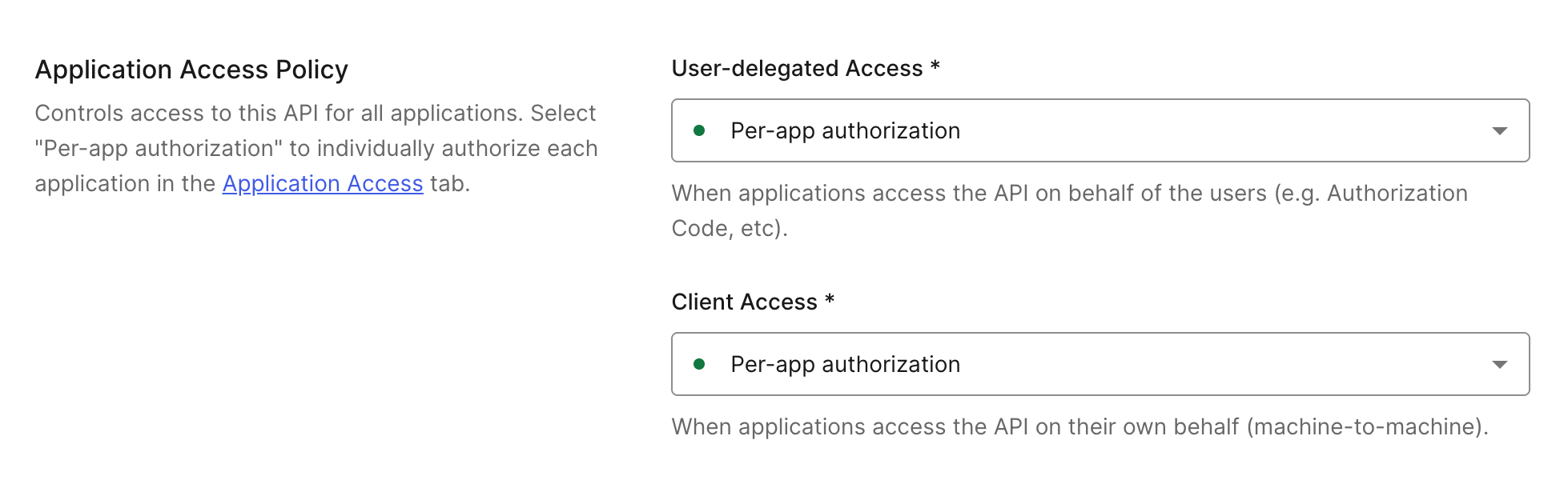

- Navigate to Dashboard > Applications > APIs and select the API you want to configure application access for.
- Go to the Settings tab and scroll down to Application Access Policy.
- Configure User-Delegated Access to No apps allowed, Per-app authorization, or All apps allowed.
- No apps allowed: No application can get an access token to the API.
- Per-app authorization: Only applications with a client grant defined can get an access token for the API.
- All apps allowed: Any application in your tenant can get an access token to the API.
- Configure the Client Access to Per-app authorization or All apps allowed.
- Per-app authorization: Only applications with a client grant defined can get an access token for the API.
- All apps allowed: Any application in your tenant can get an access token to the API.
- Configure User-Delegated Access to No apps allowed, Per-app authorization, or All apps allowed.
- Select Save to save the Application Access Policy settings.
- Navigate to Applications > APIs and select the API.
- Go to the Application Access tab.
- Scroll to the application, select Edit, and then Grant Access for User-Delegated Access and/or Client Access. Then, select your desired permissions.
- Select Save.
Default permissions for third-party applications
Third-party applications always require an explicit client grant to access any API, even when the API’s access policy is set to Allow All. To simplify management when you have many third-party applications or use Dynamic Client Registration, configure default grants or permissions that apply to all third-party applications automatically. A default third-party client grant uses thedefault_for attribute instead of a client_id. You can also define per-application permissions by creating a client grant with a specific client_id. When both exist for the same API, per-application permissions take precedence.
System APIs (the Management API, My Account API, and others) do not support default third-party client grants. Third-party applications cannot be granted access to system APIs.
default_for and client_id attributes are mutually exclusive. Each client grant must specify exactly one of them.
To learn how to configure API access policies for third-party applications, read Configure Third-Party Applications.
- Auth0 Dashboard
- Management API
To configure default permissions for third-party applications using the Auth0 Dashboard: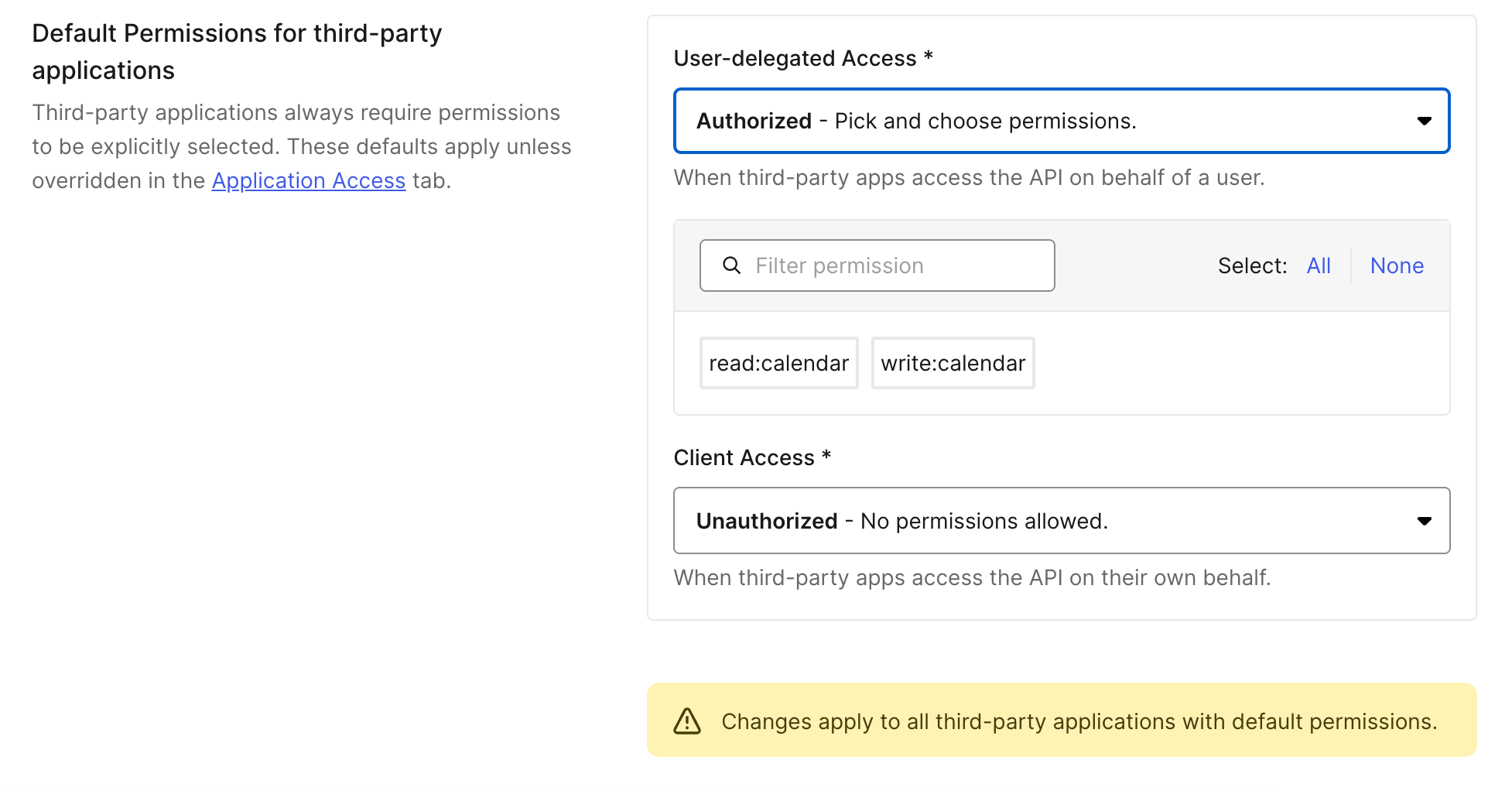
- Navigate to Dashboard > Applications > APIs and select the API you want to configure application access for.
- Go to the Settings tab and scroll down to Default Permissions for Third-Party Applications.
- Configure User-Delegated Access and/or Client Access to Unauthorized, Authorized, or All.
- Unauthorized: No permissions allowed.
- Authorized: Pick and choose permissions.
- All: Includes existing and future permissions.
- Configure User-Delegated Access and/or Client Access to Unauthorized, Authorized, or All.
- Select Save.
Update client grant
To update an existing client grant, make aPATCH request to /client-grants/{id}:
Delete client grant
To delete a client grant, make aDELETE request to /client-grants/{id}:
Retrieve client grants
You can also query and paginate through theclient-grants collections by using parameters like client_id, audience, or subject_type: