Authenticate
 Manage Users
 Customize
 Auth0 AI
 Platform
Before you start
To migrate to the Unified Phone Experience, you must:
- Have Multi-Factor Authentication (MFA) SMS, Voice, or SMS+Voice notifications enabled and configured in your tenant, or
- Have Passwordless SMS enabled and configured in your tenant
Auth0 does not provide feedback to the end user on whether a phone message has been sent successfully with the tenant-level provider. To troubleshoot issues, review the tenant logs.
Update your phone provider
To use the Unified Phone Experience, you need to:- Verify current settings
-
Configure your provider:
- Configure Twilio
- Configure a custom phone provider
- Update your phone factors and delivery methods
- Update endpoints
- Update Auth0 Actions triggers
Verify current settings
- To verify your current MFA settings, navigate to Auth0 Dashboard > Security > Multi-factor Auth.
- Select Phone Message.
-
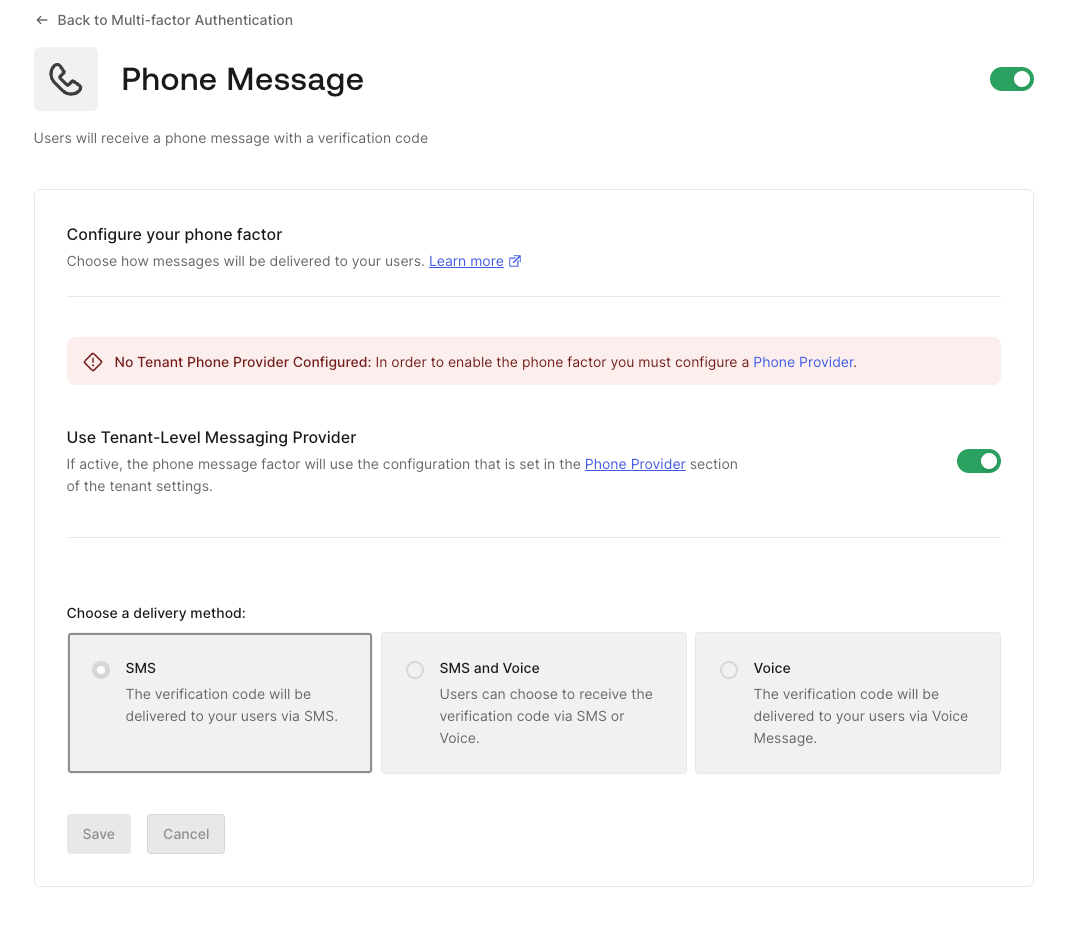
New Auth0 tenants are able to use the Unified Phone Experience, a banner advises you to configure a tenant phone provider:
-
Existing tenants prior to March 2025 are able to configure SMS and Voice notificatiosn for Multi-Factor Authentication (MFA) along with the Unified Phone Experience.
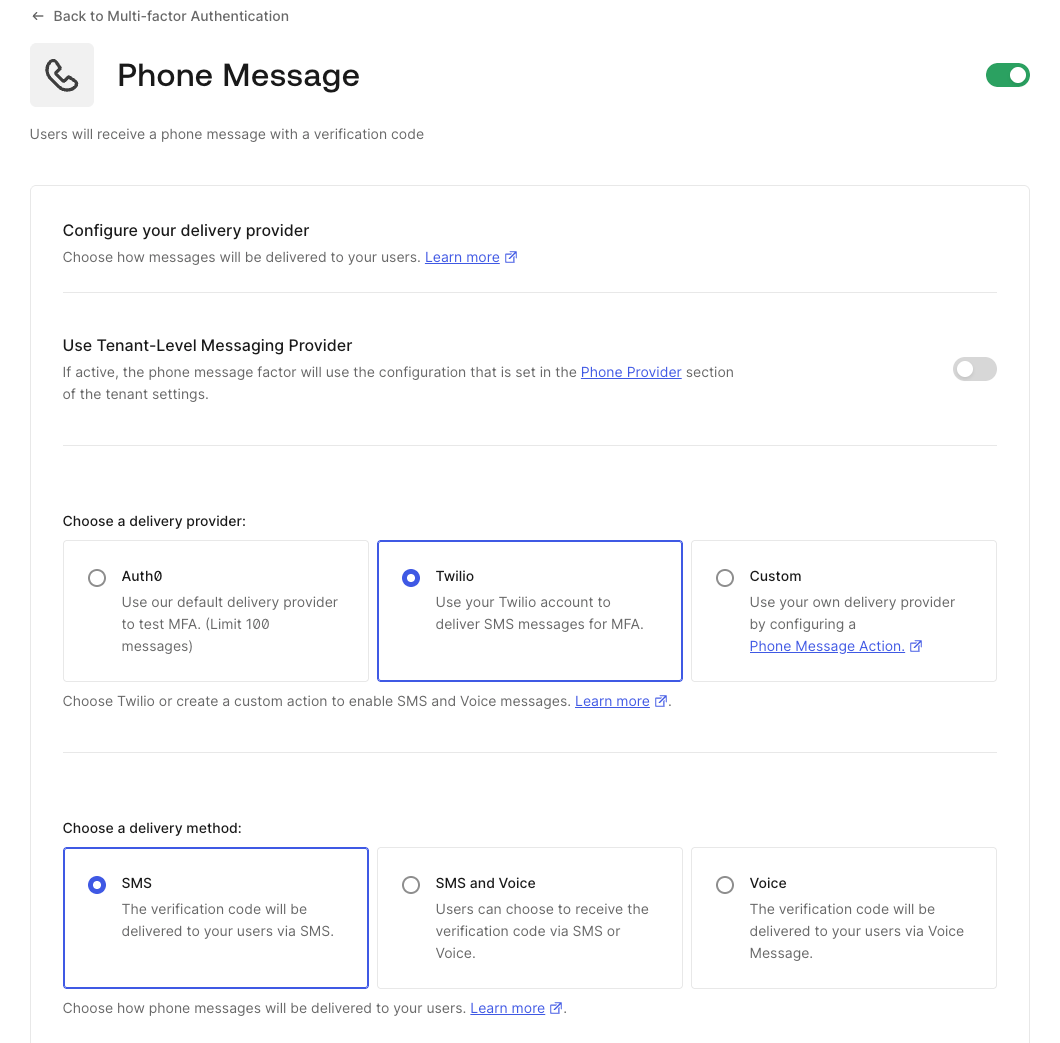
Auth0 recommends to use the Unified Phone Experience. If you must use the SMS and Voice notifications for Multi-Factor Authentication (MFA) experience to configure your phone provider, and the toggle to Use Tenant-Level Messaging Provider is missing, contact Auth0 Support.
- To verify your tenant settings, navigate to Dashboard > Tenant Settings.
- Select Advanced.
- Locate Unified Phone Experience.
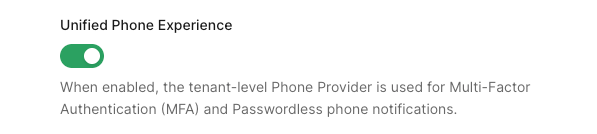
- Toggle to enable, if needed.
Configure Twilio as a tenant-level provider
If you are using Twilio as your phone provider for Multi-Factor Authentication, you must add the Twilio SID and AuthToken to the Unified Phone Experience. You can copy the Twilio SID from your existing configuration, but you will need to get the value of the AuthToken from Twilio.- Navigate to Branding > Phone Provider.
-
Select and configure your provider:
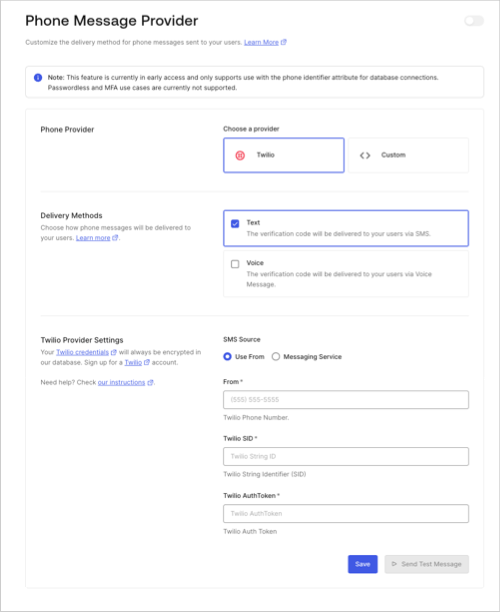
- Choose Twilio as your phone provider.
- Choose your delivery methods.
-
Enter Twilio settings.
Desired MFA factors must be a subset of the delivery methods you configure at the tenant-level.
- Save your changes.
- Select Send Test Message to test the tenant-level provider before using it in a production environment.
-
Enable a tenant-level provider.
- For MFA, navigate to Security > Multi-factor Auth > Phone Message.
- Select Use Tenant-level Messaging Provider.
- Save your changes.
Configure a custom provider with Auth0 Actions
The Unified Phone Experience uses thecustom-phone-provider Actions Trigger for phone notifications rather than the send-phone-message Actions Trigger for custom phone notifications.
You cannot directly migrate your send-phone-message Actions trigger to the custom-phone-provider Actions trigger because:
- There is no 1:1 mapping between message and notification types.
- Migrating secrets and dependencies associated with the send-phone-message Actions trigger could cause security concerns or break the tenant experience.
-
Actions can support more than one trigger and could be difficult to migrate. For example, Actions can support both the
send-phone-messageandpost-logintriggers. -
The
send-phone-messageandcustom-phone-providerActions triggers support different event types:send-phone-messagesupports the SMS and Voice message types. To learn more, read Action triggers: send-phone-message Event Object.custom-phone-providersupports theotp_verify,otp_enroll,blocked_account,change_password, andpassword_breachnotification types. To learn more, read Actions triggers: custom-phone-provider Event Object.
- You can only set one Action per custom phone provider. If you have already set an Action for a custom phone provider, you must disable it before associating it with a new Action.
send-phone-message into a new custom-phone-provider using the new contextual variables:
Core payload
Core payload
Request data
Request data
Tenant data
Tenant data
Application data
Application data
User data
User data
Configure MFA custom-phone-provider
To continue and configure your MFAcustom-phone-provider trigger:
- Navigate to Branding > Phone Provider.
-
Select your provider:
- Choose Custom.
- Under Provider Configuration, add your translated
send-phone-messageAction code in the embedded code editor.
- Save your changes.
- Select Send Test Message to test the tenant-level provider before using it in a production environment.
- Navigate back to Security > Multi-factor Auth > Phone Message to enable the Use Tenant-level Messaging Provider.
- Save your changes.
Update MFA phone factors and delivery methods
If you have not enabled a tenant-level provider in the Auth0 Dashboard, you won’t be able to configure phone SMS and voice phone factors for MFA.
If you want to update the current tenant-level phone provider delivery method(s) to a different type during the migration to the Unified Phone Experience, some configuration changes may be necessary.
Update Guardian endpoints with Management API
The Unified Phone Experience uses specific endpoints for notifications. If you’ve been using Auth0 Guardian for push notifications and one-time passwords, you must update your configuration to use the new Phone Provider Branding endpoints. The following Guardian endpoints will no longer work with the Unified Phone Experience:
Replace the Guardian endpoints with the new Phone Provider Branding endpoints and scopes:
The following Guardian endpoints work with the Unified Phone Experience and will not need to be updated:
Disable phone provider
If you configure the Unified Phone Experience and then disable it, existing integrations with your phone provider, including MFA, could break.