

 Authenticate
 Manage Users
 Customize
 Auth0 AI
 Platform
To leverage the no-code editor, you must have Universal Login enabled. The Classic Login experience does not support this editor.
Universal Login no-code editor
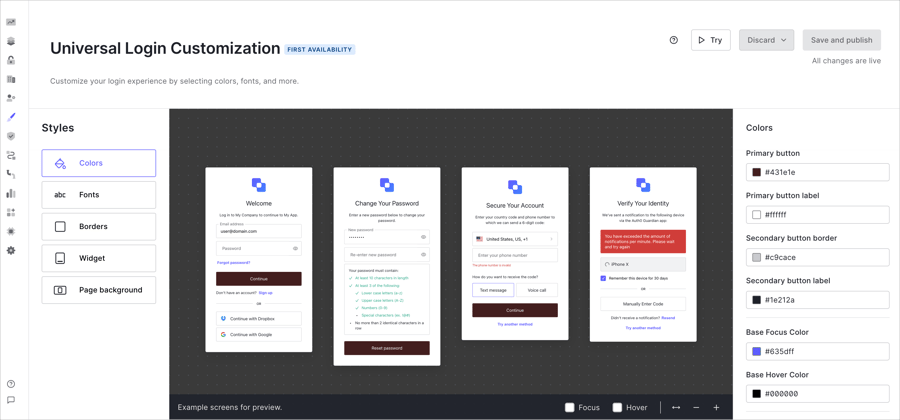
To customize your Universal Login theme, follow the steps below:- On the Auth0 Dashboard, navigate to Branding > Universal Login > Customization Options.
- Select a theme component (e.g., Colors) from the Styles menu. Then, customize the options listed to the right.
- After customizing your theme, select Save and Publish.
Theme components
To create your desired Universal Login theme, the Styles menu contains the following components:Color
Color
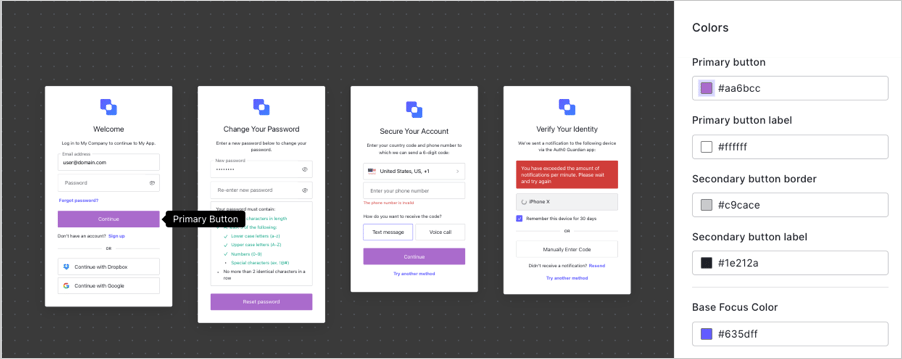
Select an input field to change the color of the element. To choose specific colors, you can: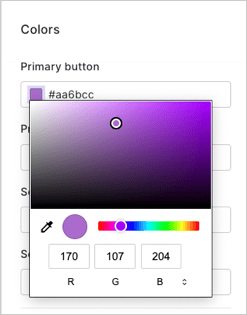
- Use the color picker.
- Input the Hex code or RGB value.
- Select the eyedropper tool to choose a color from your screen for the available elements.
Once you make a change, the preview window displays several examples of the widgets with your specified changes.
Fonts
Fonts
To change the default font, enter the URL to any WOFF (Web Open Font Format) file in the input field. Your WOFF files need to be hosted using a CDN with CORS enabled or a hosting site with Access-Control-Allow-Origin header.Under the font URL panel, adjust the general text size under the Reference text size pixel option. You should note the rest of the options do not change when the reference text is changed.Change the following elements individually: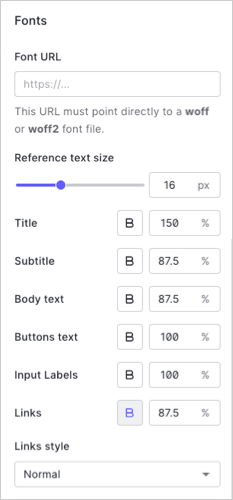
- Title
- Subtitle
- Body Text
- Button Text
- Input Labels
- Links
Borders
Borders
To customize the borders, buttons styles, input fields, and widget corners adjust the slider or choose from the available options.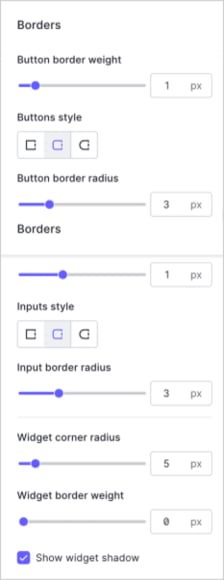
Widget
Widget
Add the URL of your logo to configure the position, height, text alignment, and social login location.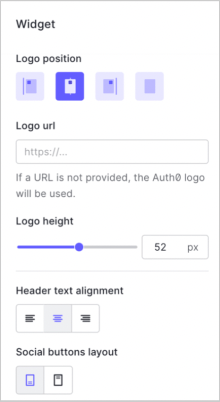
Page backgrounds
Page backgrounds
Add a background image URL to choose a background to display in the prompt widget. The No-Code Editor supports other image formats such as PNGs and JPEGs.Then, choose if the widget aligns center, left, or right on the screen.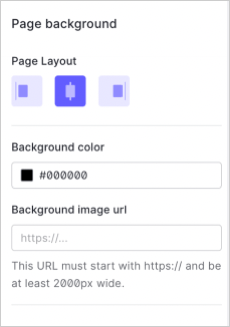
Auth0 recommends you use a JPEG image format at least 2000px wide.