Learn how to connect your app to Active Directory (AD) using Lightweight Directory Access Protocol (LDAP) through an enterprise connection.
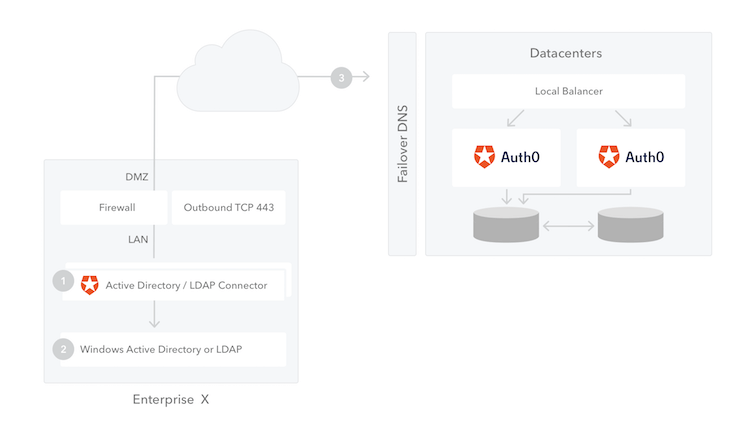
Auth0 integrates with Active Directory (AD) using Lightweight Directory Access Protocol (LDAP) through an Active Directory/LDAP Connector that you install on your network.The AD/LDAP Connector (1), is a bridge between your Active Directory/LDAP (2) and the Auth0 Service (3). This bridge is necessary because AD/LDAP is typically restricted to your internal network, and Auth0 is a cloud service running in a completely different context.
For high availability and load balancing, you can install multiple instances of the connector. All connections are outbound from the connector to the Auth0 Server, so changes to your firewall are generally unnecessary.
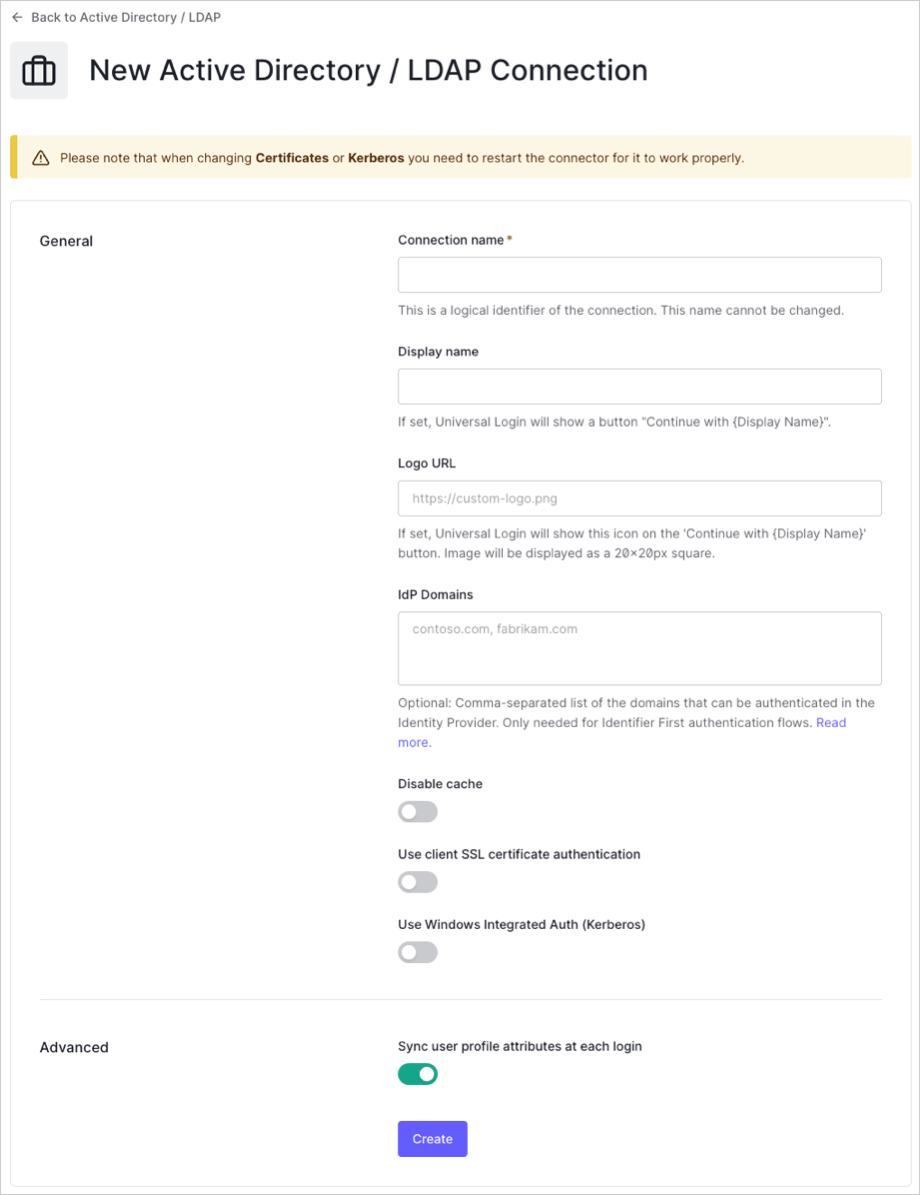
Enter details for your connection, and select Create:
Field
Description
Connection name
Logical identifier for your connection; it must be unique for your tenant. Once set, this name can’t be changed.
Display name (optional)
Text used to customize the login button for Universal Login. When set, the Universal Login login button reads: “Continue with {Display name}”.
Logo URL (optional)
URL of image used to customize the login button for Universal Login. When set, the Universal Login login button displays the image as a 20px by 20px square.
IdP Domains (optional)
Comma-separated list of valid email domains that will be allowed to log in using this connection. Only needed if using the Lock login widget.
Disable cache
When enabled, disables caching.
Use client SSL certificate authentication
When enabled, uses client SSL certificate authentication.
Use Windows Integrated Auth (Kerberos)
When enabled, you will be asked to enter a range of IP addresses. When users log in through these IP addresses, Kerberos will be used; otherwise, AD/LDAP username/password will be requested. Typically, the IP range entered represent intranet addresses.
Sync user profile attributes at each login
When enabled, Auth0 automatically syncs user profile data with each user login, thereby ensuring that changes made in the connection source are automatically updated in Auth0.
3. Download the provided installer and make note of the provided Provisioning Ticket URL.
We ship different versions of the connector to install on Windows or Linux platforms.


 Authenticate
 Manage Users
 Customize
 Auth0 AI
 Platform